
Use Apple Screen Time with Accountable2You
We recognize that many people appreciate an additional layer of protection on their devices. If you're using Accountable2You, Apple's built-in Screen Time features can serve as a helpful complement by restricting access to inappropriate websites, limiting adult content, and preventing the installation of new apps on iPhone and iPad.
In this article:
Install Accountable2You
If you haven't already, go ahead and install Accountable2You on your iOS device.
Add Screen Time restrictions
To set up Screen Time, follow the steps below:
Delete all apps that you would like to prevent access to
- Identify any apps on your device that you would like to disable.
- For each one, tap and hold it and delete the app.
Optional: If you'd like to disable all browsers, delete all browser apps except for Safari here (we will disable Safari later).
Block new app installations
This will prevent you from being able to re-download the apps you just deleted.
- Open Settings.
-
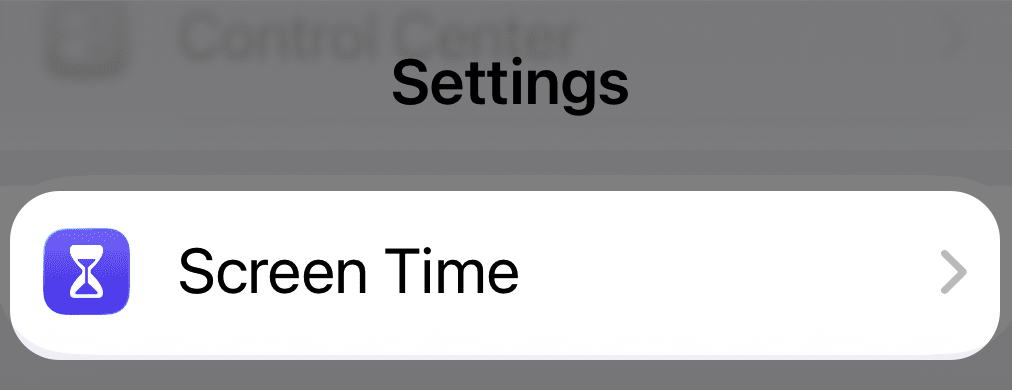
Scroll down until you see Screen Time, and tap that.
-
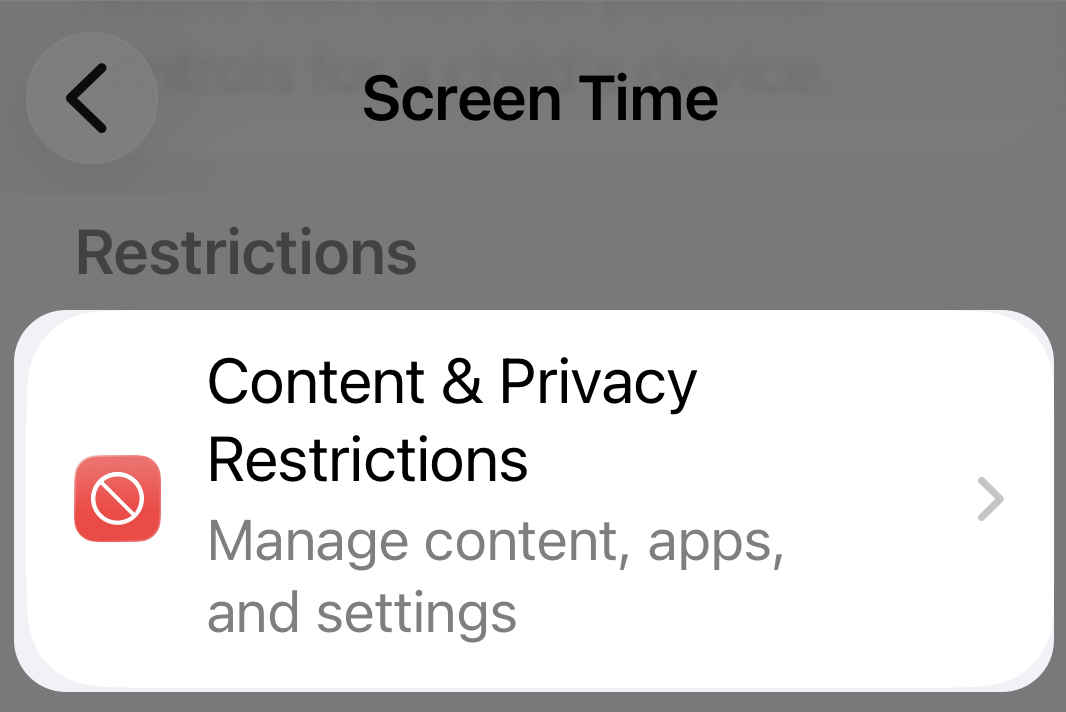
Scroll down and tap Content & Privacy Restrictions.
-
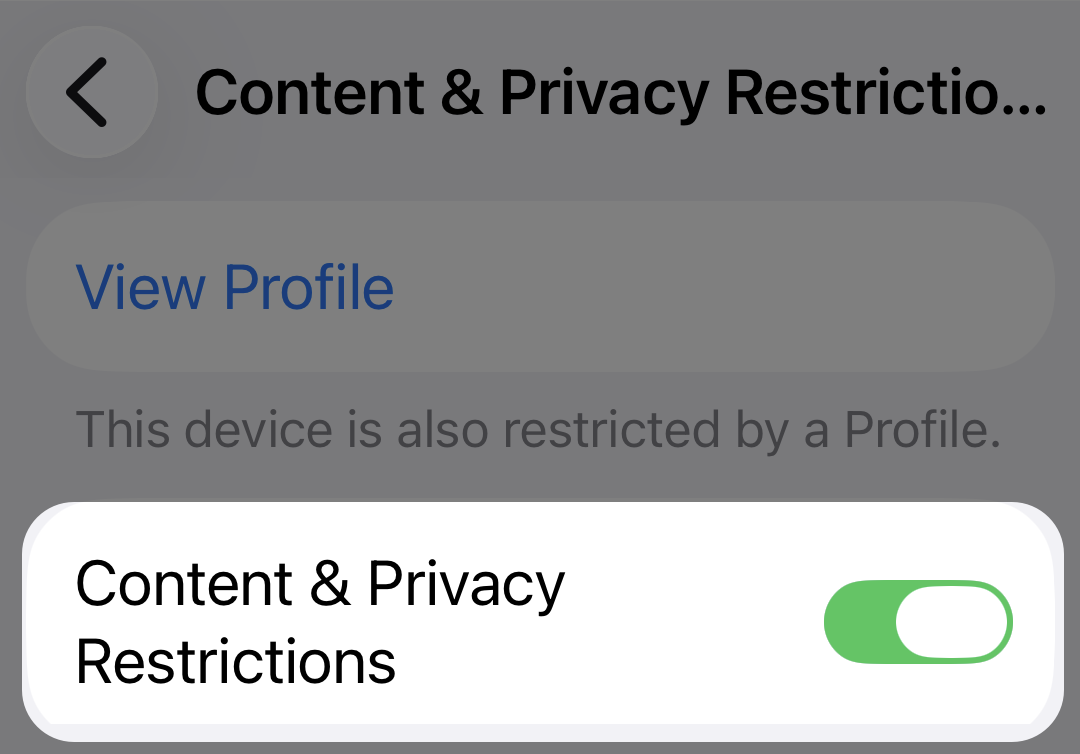
Toggle on Content & Privacy Restrictions.
-
Tap iTunes & App Store Purchases.

-
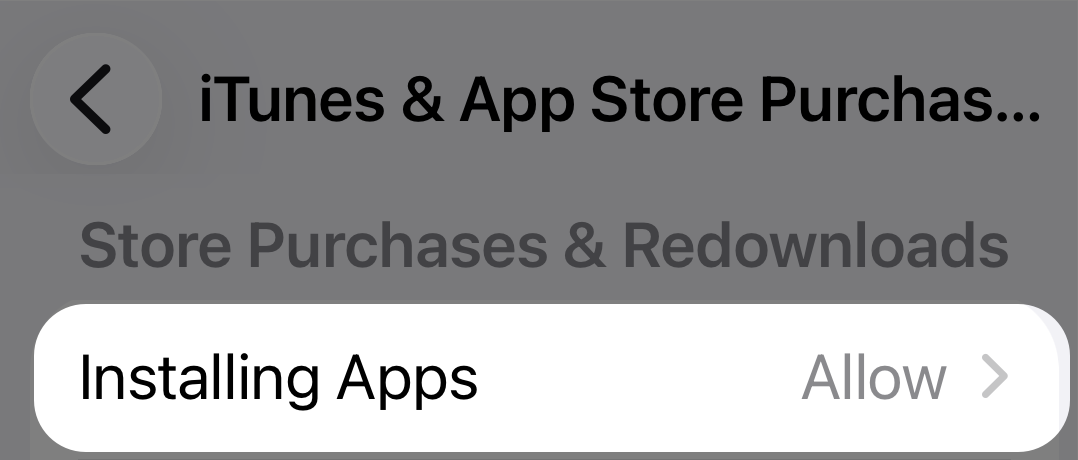
Tap Installing Apps.
-
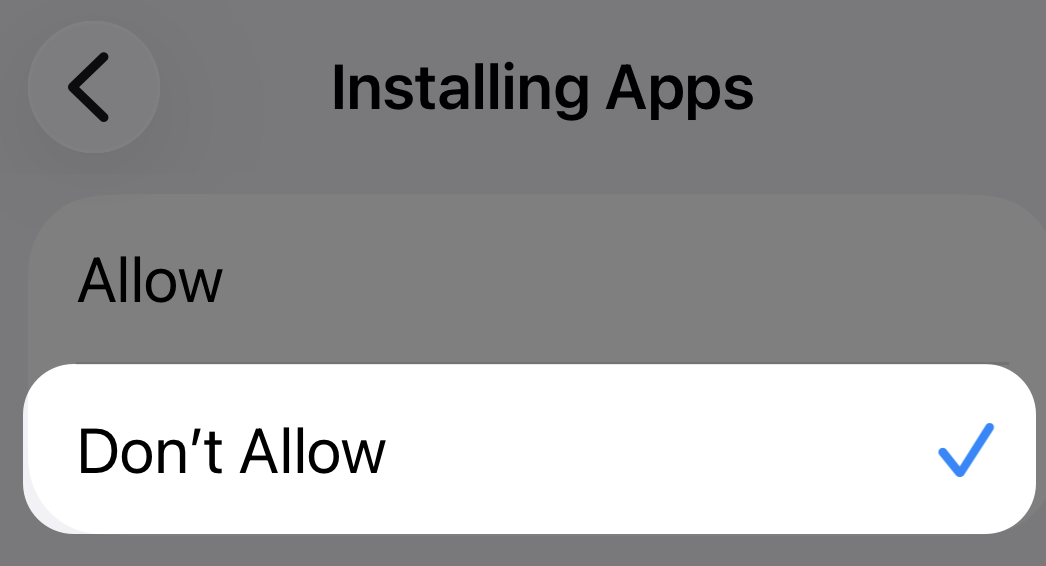
Tap Don't Allow.
- Tap the back button at the top left until you get back to Content & Privacy Restrictions.
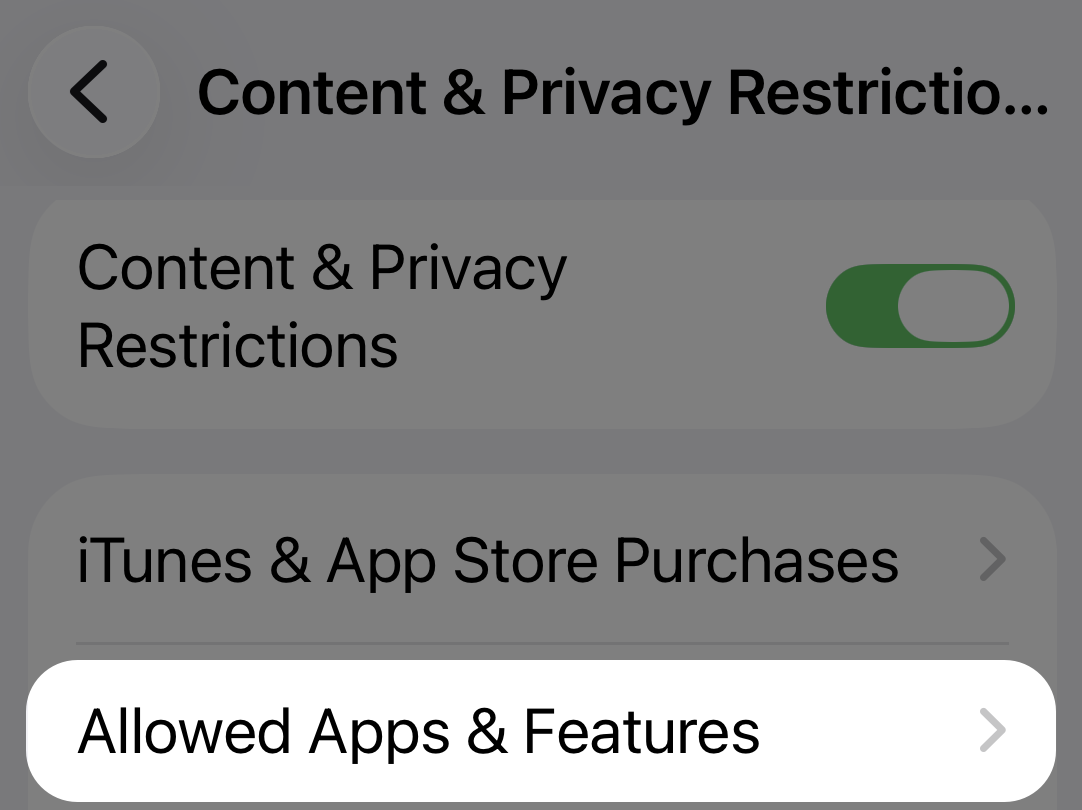
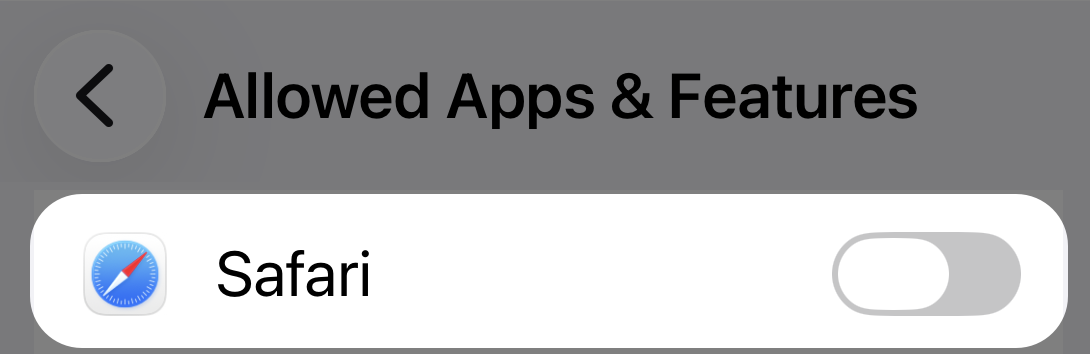
Optional: To disable Safari, tap Allowed Apps & Features and toggle off Safari.
We only recommend doing this when the intention is to prevent all browsing, and also only when deleting all other browsing apps. Once finished, return to Content & Privacy Restrictions.
Block any websites that you want to prevent access to
First:
-
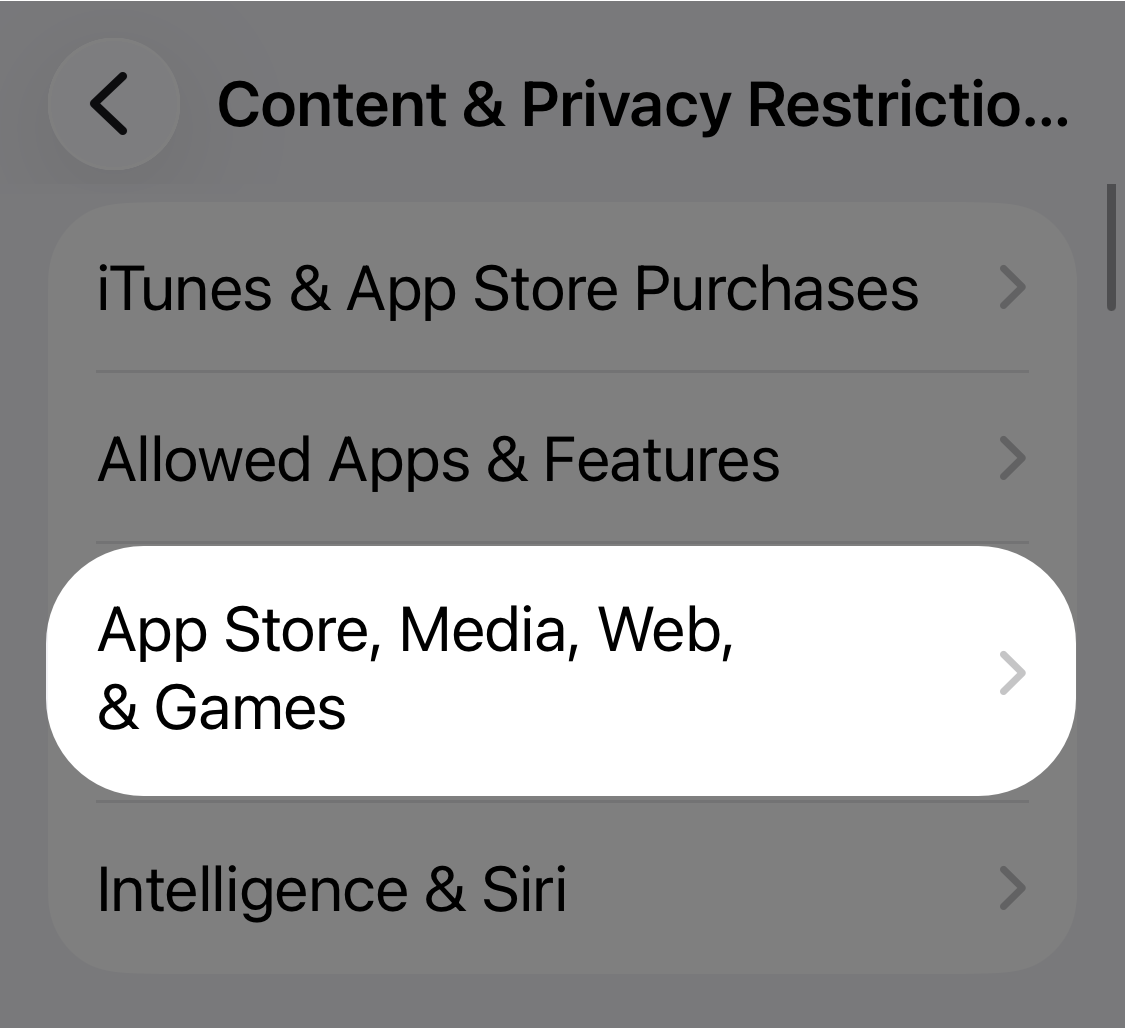
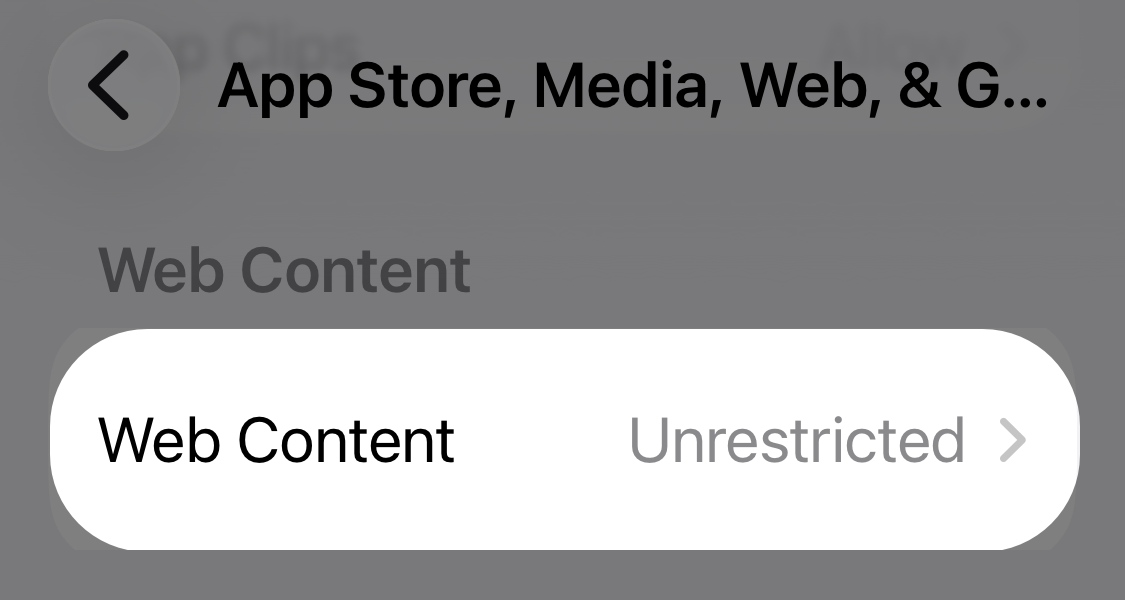
Tap App Store, Media, Web & Games.
-
Select Web Content.
Next: Choose one option:
Option 1: Block specific sites (recommended)
This blocks your chosen sites while keeping the rest of the internet accessible.
-
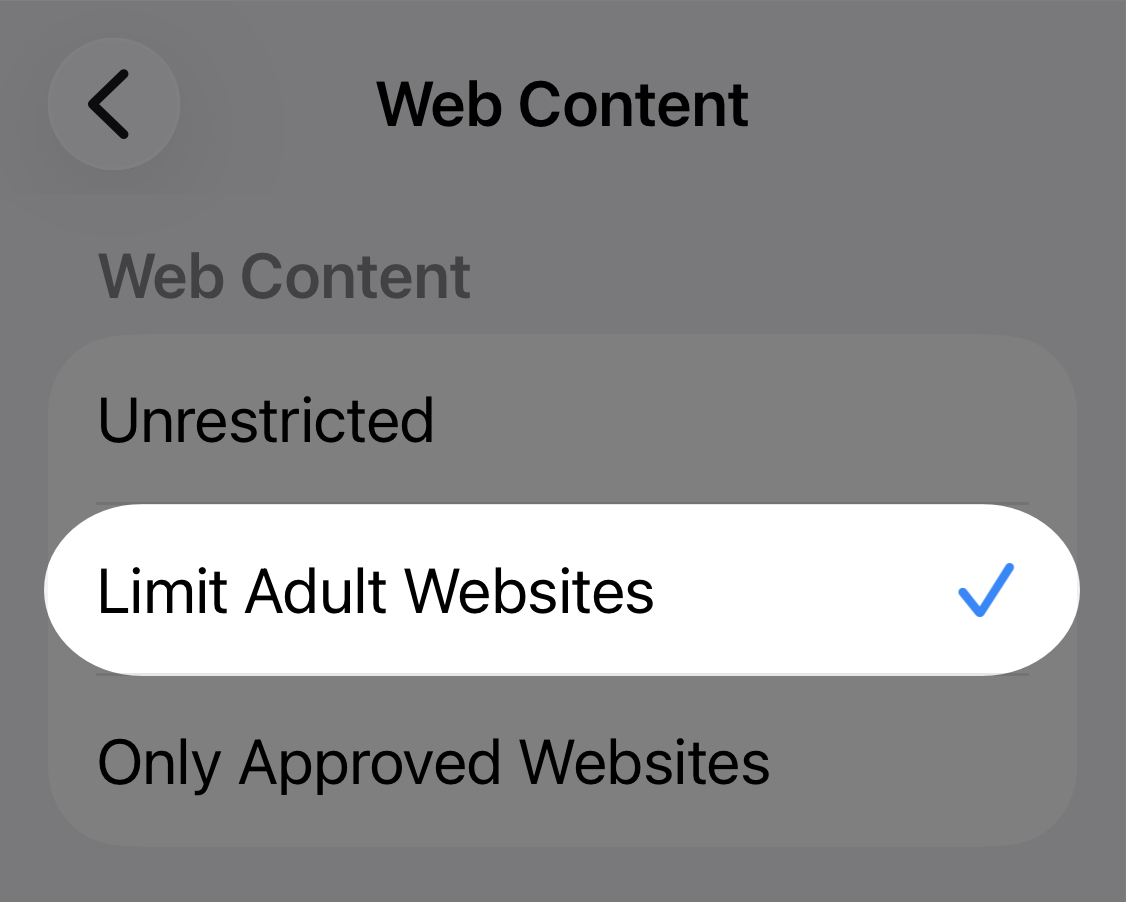
Select Limit Adult Websites.
-
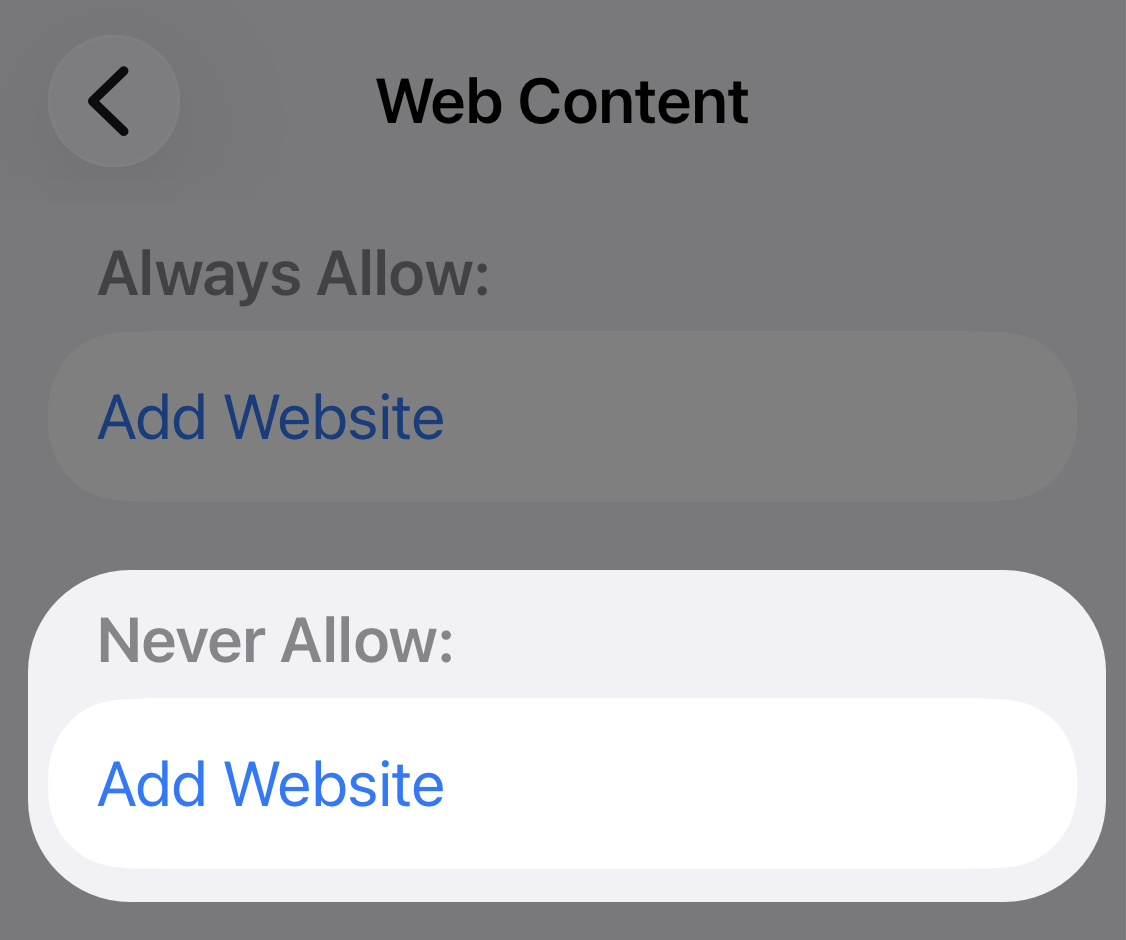
Under Never Allow, tap Add Website.
-
Add each website that you'd like to block (e.g.,
facebook.com).
- Tap the checkmark to save.
Option 2: Allow Only Specific Sites
This automatically blocks all websites except your approved sites.
-
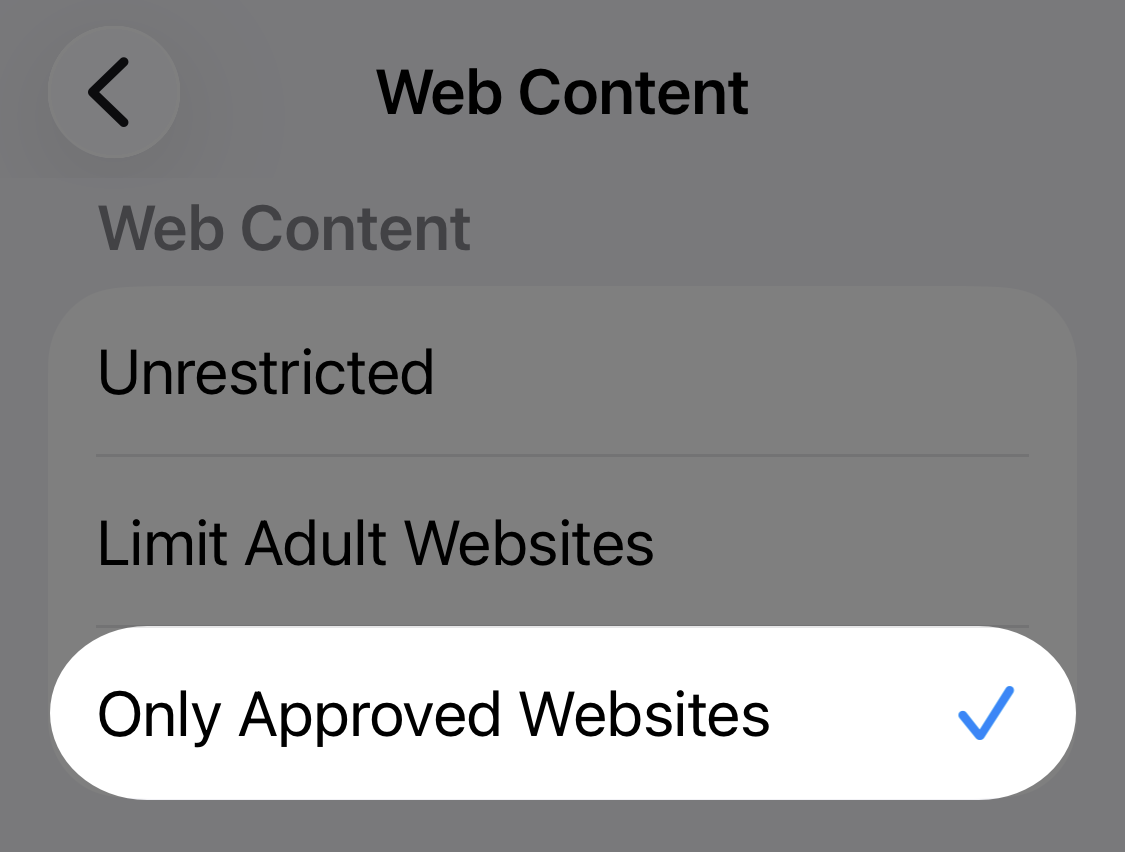
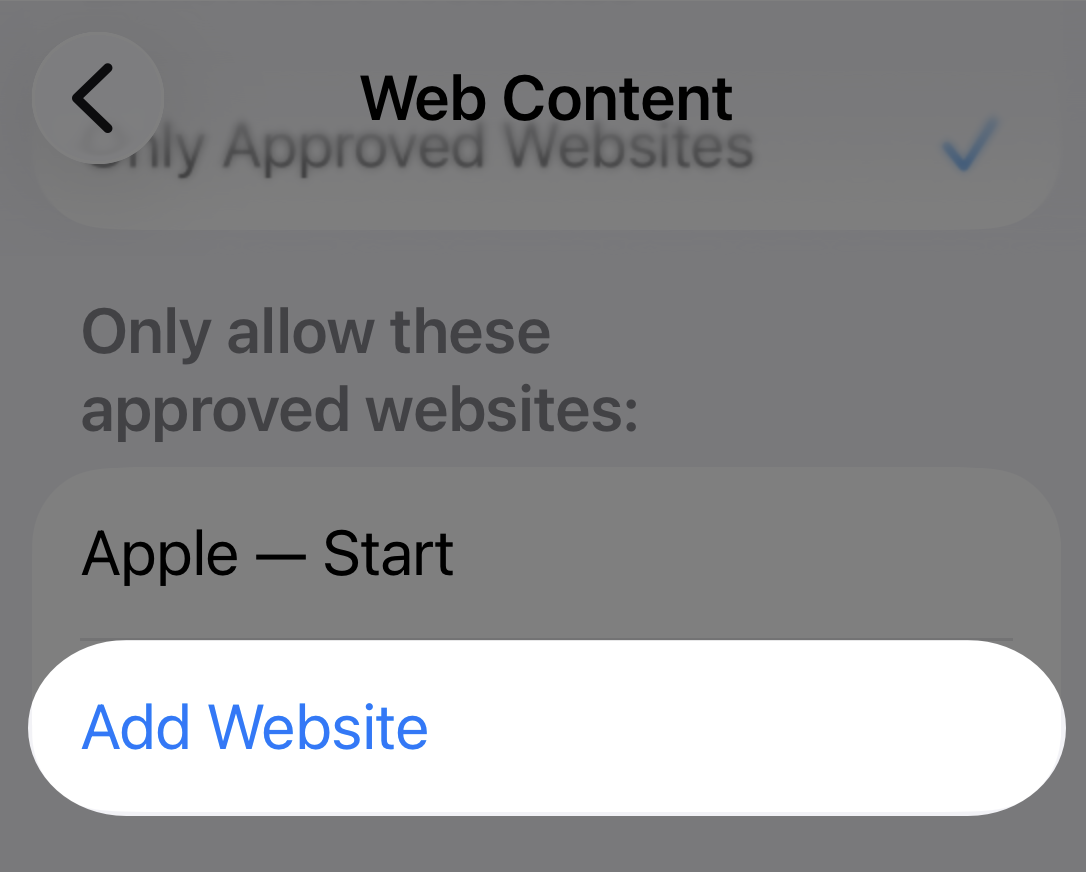
Tap Only Approved Websites.
-
Tap Add Website.
-
Add any websites you should keep access to.
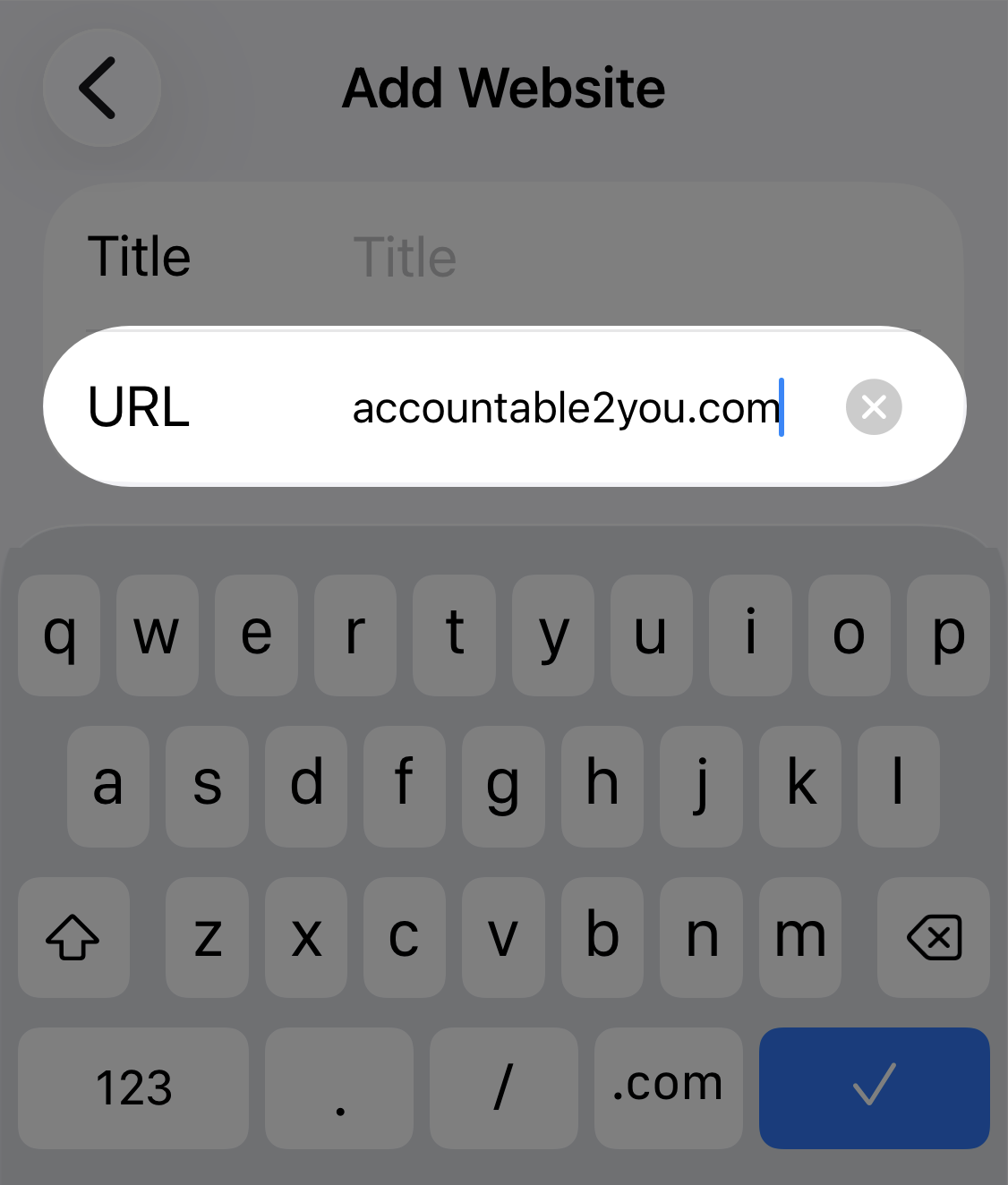
- Tap the checkmark to save.
Finally: Tap the back button at the top left until you get back to the main Screen Time menu.
Important: Lock the settings
Follow these steps to get the most out of your Screen Time settings. These settings work best when someone you trust sets the passcode. If you set it yourself, you can undo everything at any time. Just remember: giving someone the passcode also gives them significant control over your device, so this should be someone you fully trust.
-
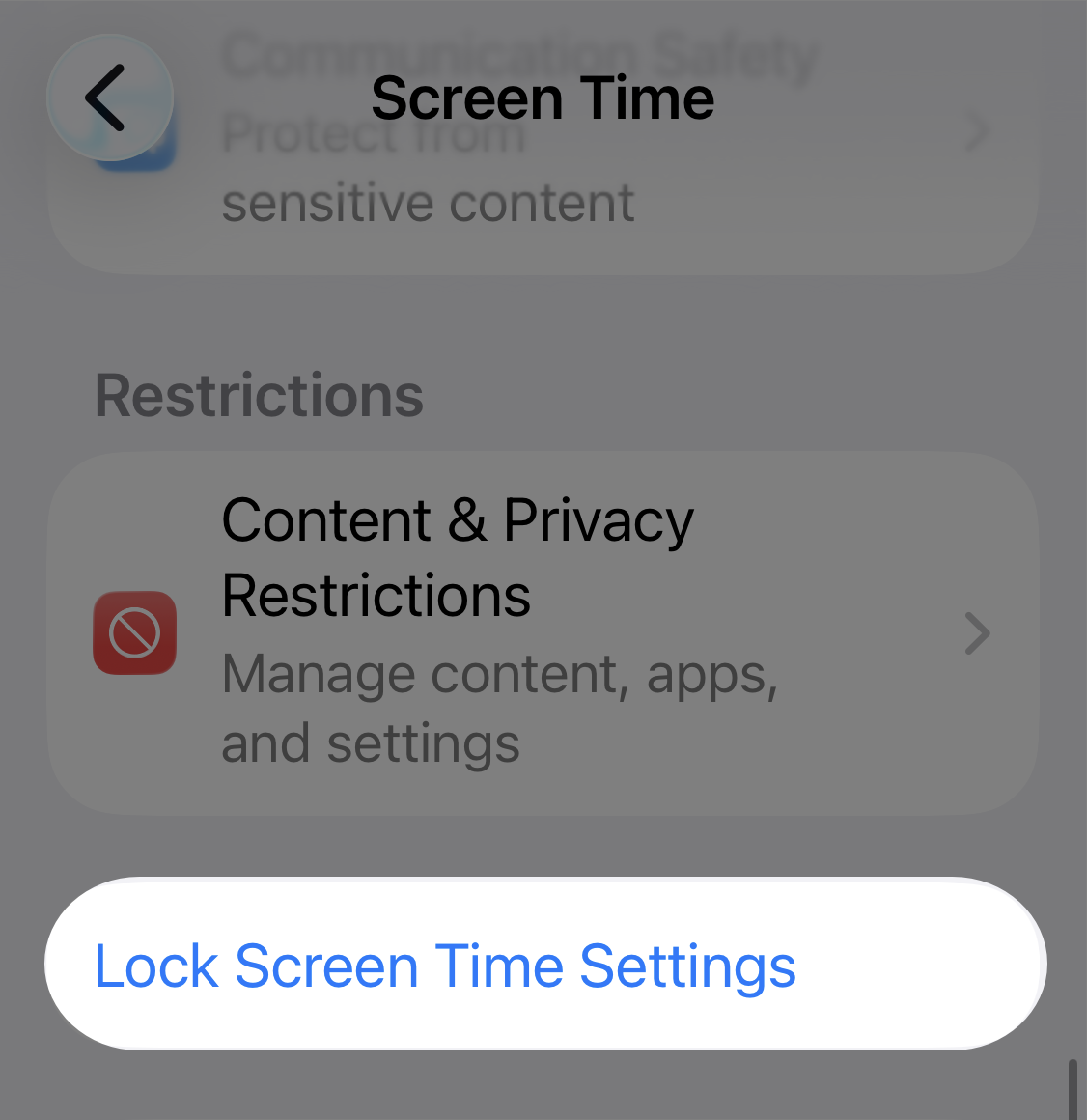
Tap Lock Screen Time Settings.
-
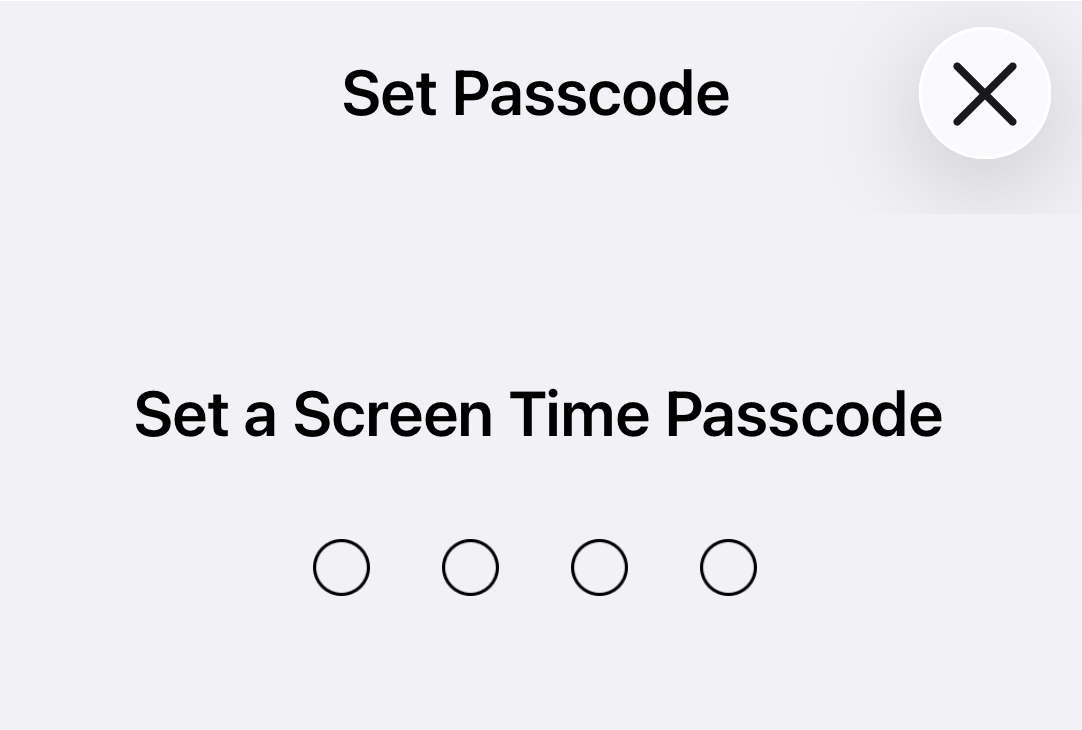
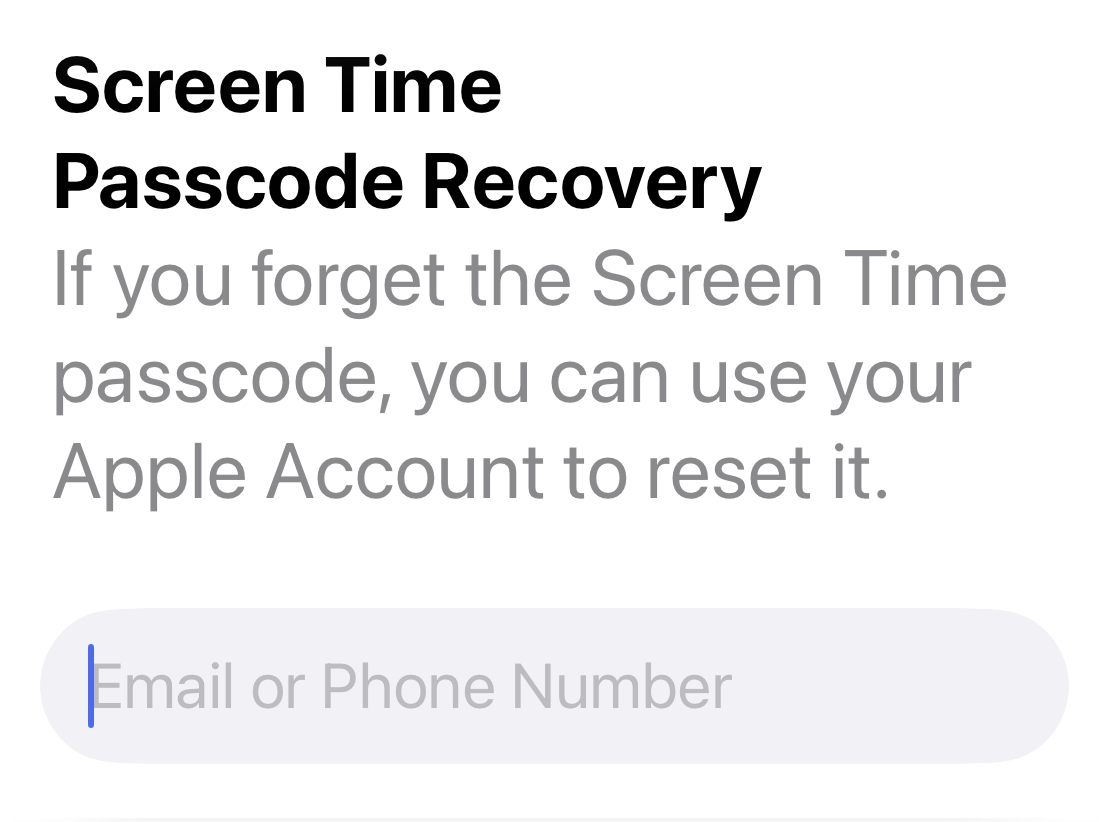
Have a trusted friend or family member who also has an Apple device set your Screen Time passcode.
-
On the Screen Time Passcode Recovery screen, have your friend or family member enter their own Apple ID (not yours) so they can reset the passcode if needed without giving you access.
- Restart your device to apply the changes. ✅
If you need to install updates or new apps
You can update existing apps or install a new app when your friend or family member is present by following these steps:
- Open Settings > Screen Time.
- Go to Content & Privacy Restrictions > iTunes & App Store Purchases > Installing Apps.
- Tap Allow.
- Have your friend or family member enter the Screen Time passcode.
- Once allowed, exit the Settings app, swipe down from the center of your screen, and search for the App Store.
- Tap your profile picture in the top right.
- Scroll down under Upcoming Automatic Updates and select Update All.
- If you need to install any additional helpful apps, you can also do this at this time.
- When you're finished, follow steps 1-4 again, except change the Installing Apps setting back to Don't Allow.
Additional Resources
Have questions? Feel free to check out Apple's documentation on Screen Time for even more options:
- Use Screen Time to manage your child's iPhone or iPad | Apple Support
- Use parental controls to manage your child's iPhone or iPad | Apple Support
Apple mentions Family Sharing in these articles, but it isn’t actually required to set up most Screen Time settings.